
Chapter 08
Running the platform
Deployment: your own devices, rented slots, providers and every common setup.
Where do nodes live?
Nodes can run on literally any device that can run C code and connect to a network. This includes:
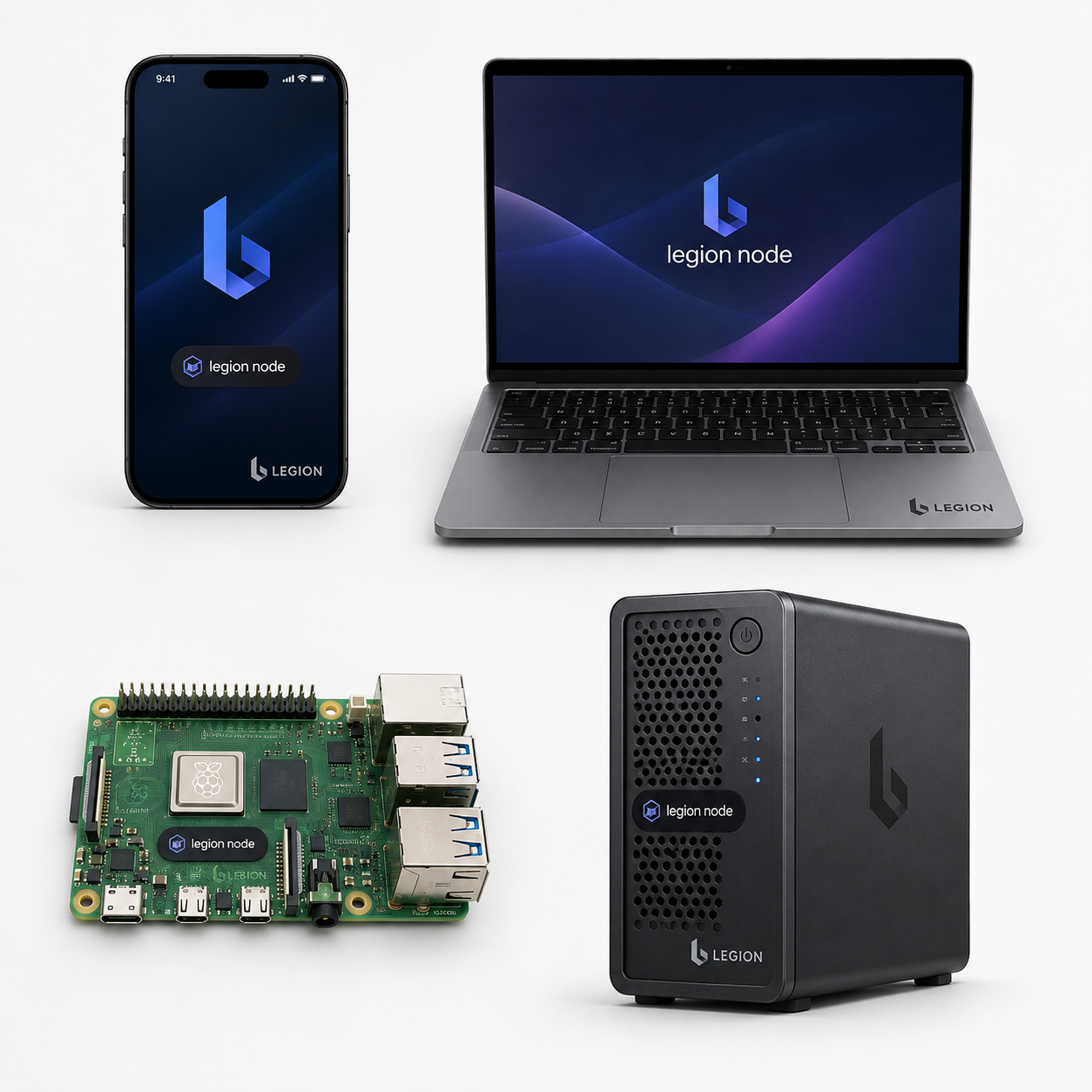
- Smartphones — the default starting point. Always on, always connected, with cameras and microphones.
- Laptops and desktops — powerful enough for most tasks, great as interface devices.
- Raspberry Pi — low power, always-on, perfect for home servers.
- Rented cloud servers — powerful, always-on, accessible from anywhere.
- Embedded devices — ESP32 microcontrollers with small screens, for minimal interfaces.
- Docker containers — ephemeral workers that spin up, do a task, and shut down.
Every device type runs the same core Legion software. The difference is which modules (capabilities) it loads.
Installation formats
Legion software is distributed in several ways:
| Package | What it contains | Installed on |
|---|---|---|
legion | Core library + node daemon + CLI tool | Every device |
legion-ai | AI modules (speech, language, text-to-speech) | Orchestrator nodes only |
legion-alsa-audio | Audio modules | Audio specialist nodes |
legion-desktop | Desktop GUI (Tauri app) | Desktop interface nodes |
legion-base-apps | Reference apps (CLI assistant, etc.) | Any interface device |
Notice that an interface device (your smartphone or laptop) doesn't need the AI modules. It only needs the core package. The AI work happens on the orchestrator node.
Three ways to get hardware
Option 1: Your own devices
You already have some of these. Your smartphone, your laptop, maybe a Raspberry Pi gathering dust in a drawer. These are your personal nodes — zero cost, full control, zero dependencies.
To start:
- Install the
legionpackage. - Run
legion-node-runnerto start your node. - Pair it with your smartphone (your main device).
- Done. You're in the network.
Option 2: Rent a slot
If you need more power than your personal devices can provide, you can rent compute from a provider. Providers are independent operators who rent out hardware slots.
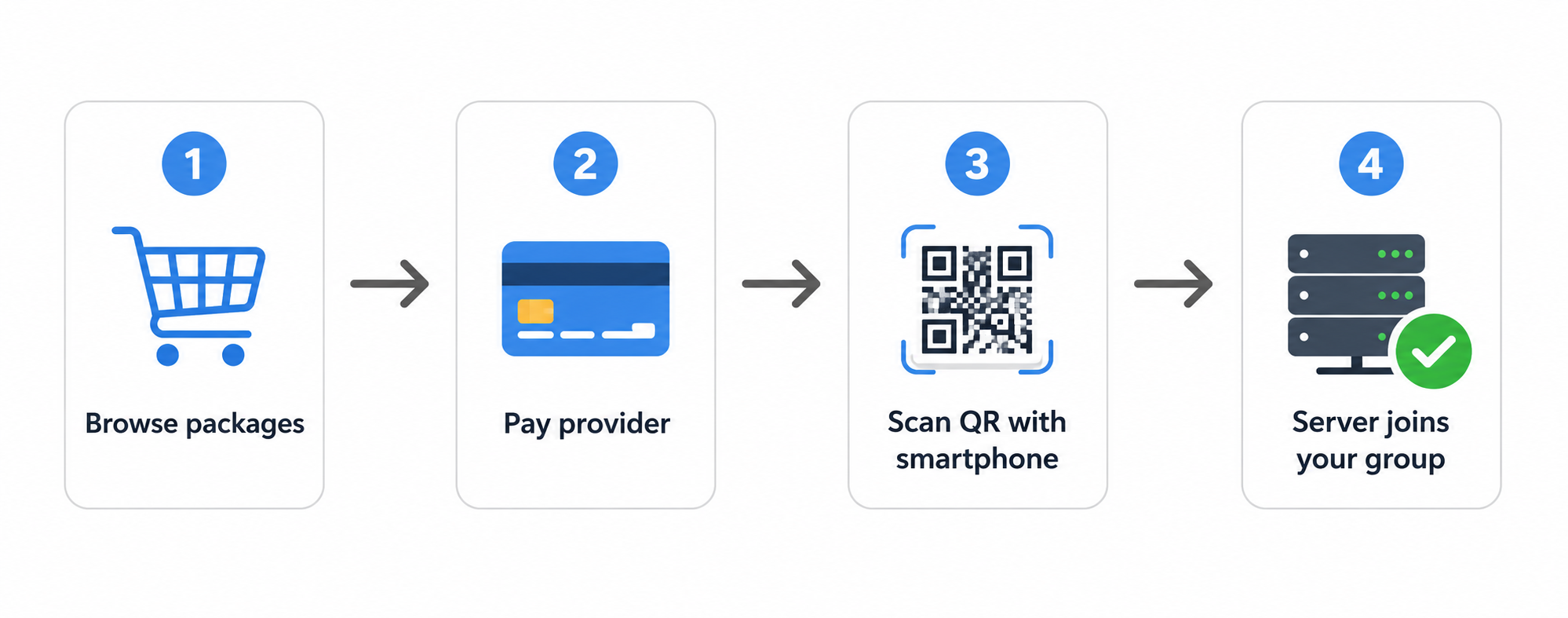
The process:
- Browse the provider directory on
legios.cloud. - Pick a package (e.g., “GPU Worker — AI language model + speech”).
- Pay the provider directly (Legion doesn't handle payments).
- Scan a QR code with your smartphone to approve the connection.
- The rented server starts and joins your group automatically.
Key security points:
- The provider never sees your keys or your data.
- The provider just rents you compute. Your identity and data stay on your devices.
- You can revoke the rented server at any time from your smartphone.
Option 3: Self-hosted bridge
If you want to enable internet access for your home network (so you can reach your servers from a hotel, a cafe, etc.), you need a bridge node.
You can use a public bridge (listed on legios.cloud), or run your own:
- Install the bridge daemon on a publicly accessible server (VPS, cloud instance, etc.).
- Your home nodes register with the bridge on startup.
- When you connect from anywhere, the bridge routes your connection to your home nodes.
This is like having your own private VPN server, but Legion handles the routing automatically. You don't configure IP addresses or firewall rules.
Deployment scenarios
Here are the most common setups:
The “Just My Phone” setup
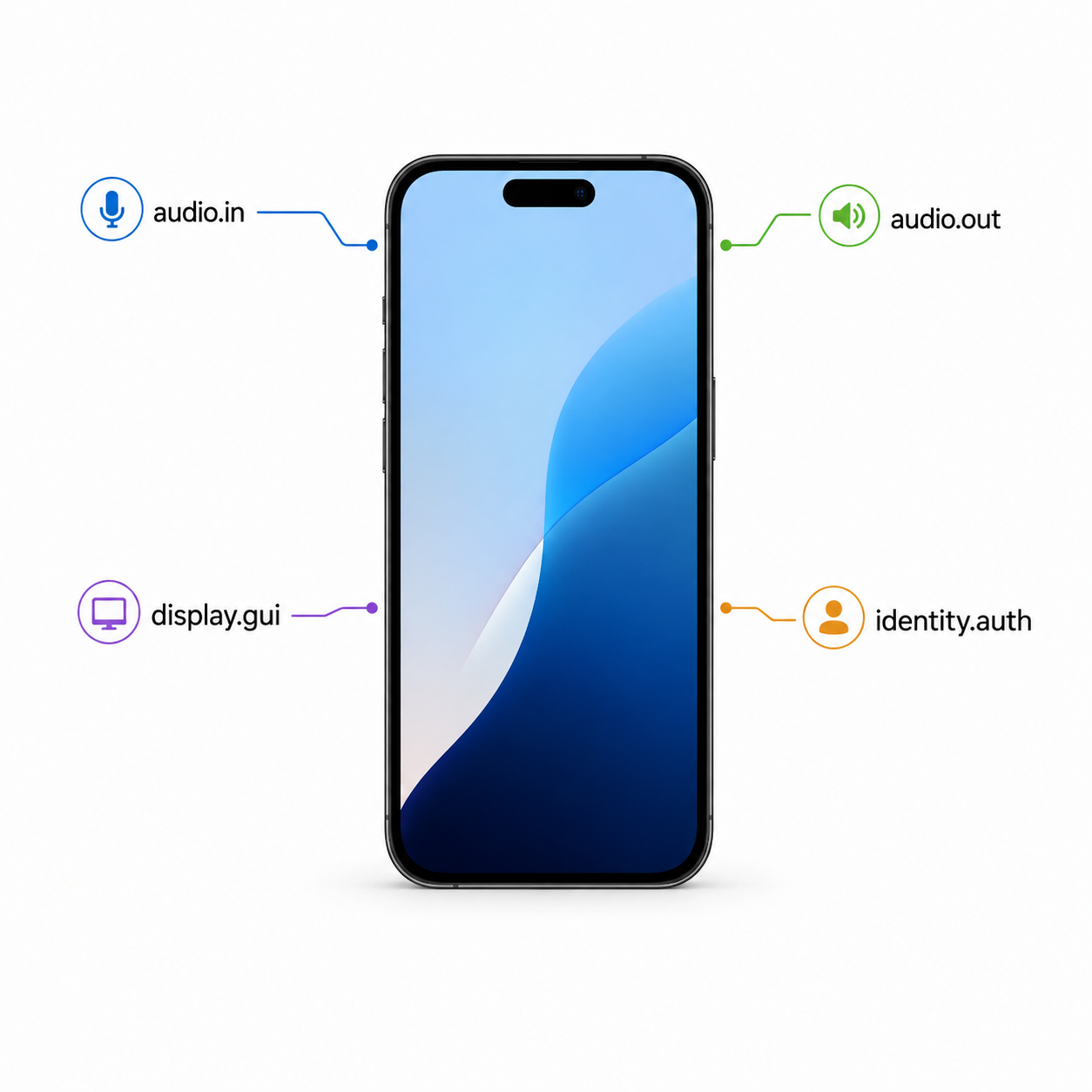
Your smartphone is everything. It captures audio, displays output, handles authentication. If you have no other devices, this is your complete cohort. You can still use Legion — just with fewer capabilities.
The “Home Server” setup
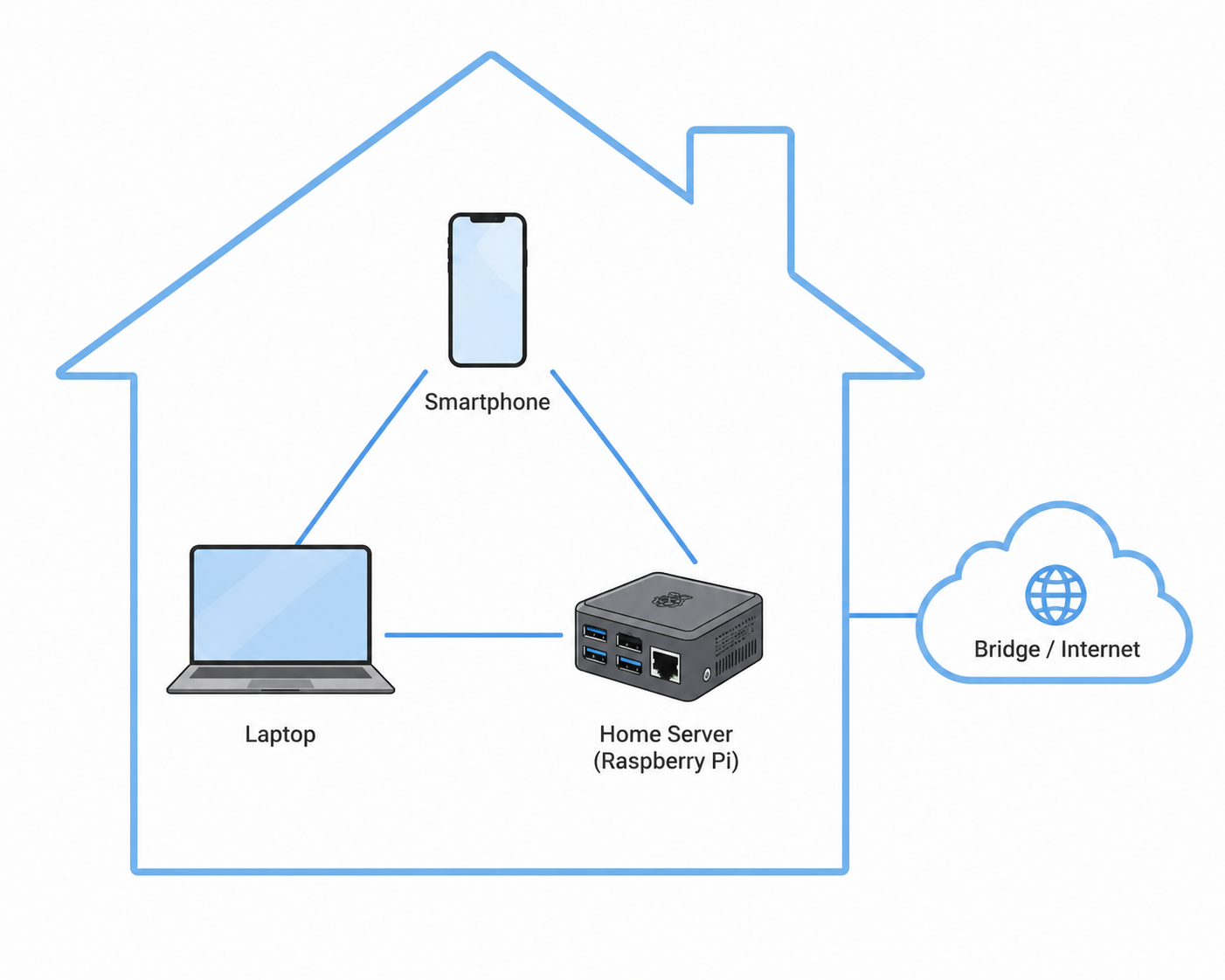
Your smartphone + a Raspberry Pi or mini PC running at home. The home server runs AI modules (orchestrator), and your smartphone is the interface. Simple, private, fast (local network).
The “Full Setup” setup
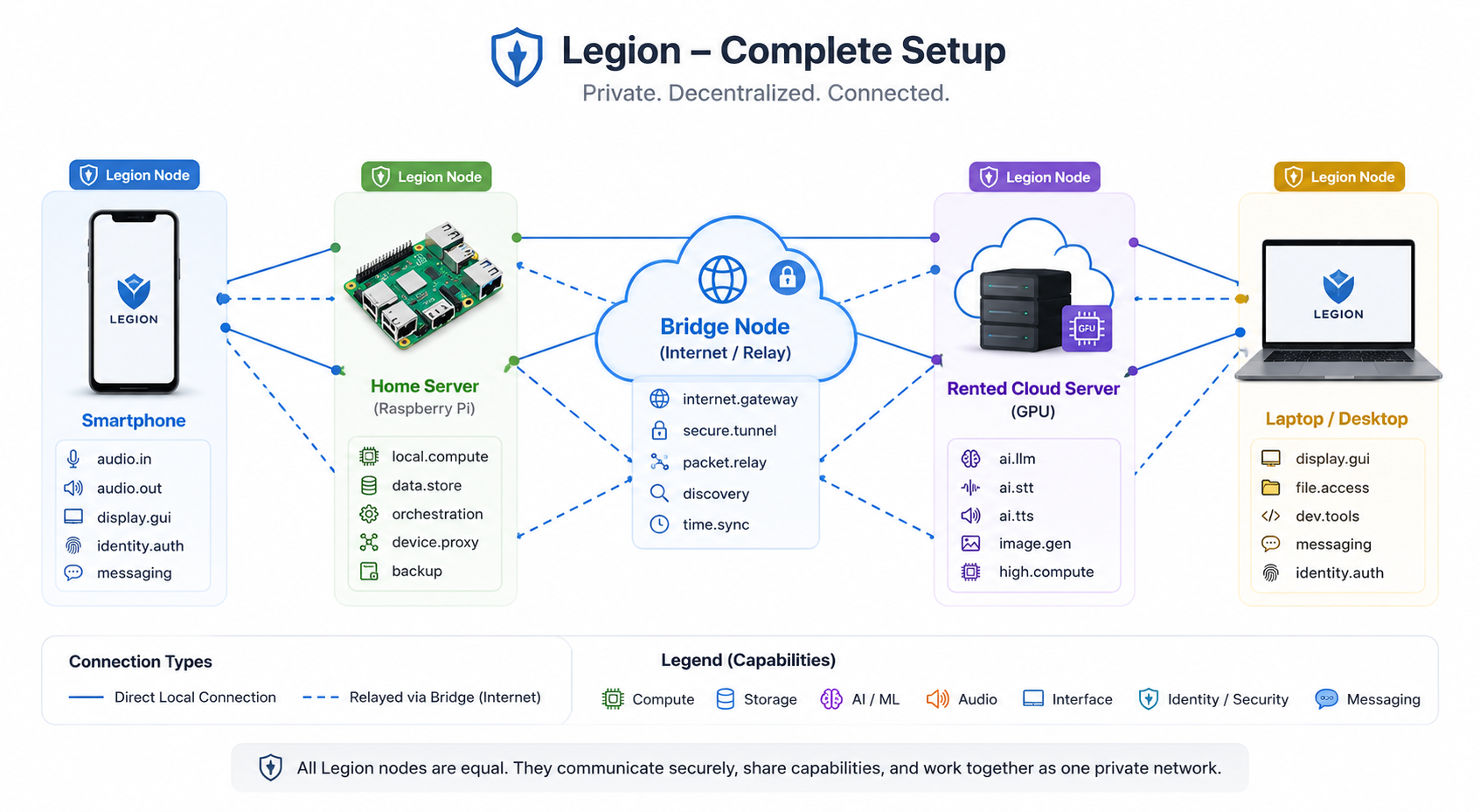
Phone + home server + rented cloud power + laptop. The home server handles everyday tasks. The rented server handles heavy computation. The bridge connects everything across the internet. Your laptop is a seamless extension of your smartphone.
Running as a service
On Linux, Legion runs as a system service (using systemd). This means:
- It starts automatically on boot.
- It restarts automatically if it crashes.
- Logs are managed by the system journal.
On Docker, it runs as a container:
FROM legios/node-runner:latest
COPY my-node.cert /etc/legion/node.cert
The container starts, loads its certificate, joins your cohort, and runs. If the container is replaced (e.g., after an update), the same identity is preserved because the node key is stored as a Docker secret.
What providers need to do
If you want to become a Legion provider (renting out your hardware):
- Run a public bridge node (port 7575 accessible).
- Implement the Legion Installer API (the protocol for onboarding new users).
- Run the signed Legion node runner binary.
- Provide an uptime guarantee (recommended: 99.9%).
- Register on the legios.cloud provider directory (optional — you can also be added manually by users).
Anyone can be a provider. Legion doesn't approve or vet providers — the marketplace is federated, meaning trust comes from user reviews and reputation, not from a central authority.
Offline operation
Legion works fully offline. If your devices are all on the same local network with no internet connection:
- Discovery works via multicast (Layer 1).
- Communication works via direct LAN connections.
- Consensus works normally.
- Apps run from cache.
- AI models run locally on your orchestrator.
The bridge and seed nodes are only needed for remote access — reaching your home devices from outside your network.
Summary
| Setup | Devices | Internet needed? | Cost |
|---|---|---|---|
| Phone only | Phone | No (local) / Yes (remote) | $0 |
| Home server | Phone + Pi/mini PC | Yes (for remote) | Hardware cost |
| Full setup | Phone + Pi + rented GPU + laptop | Yes | Hardware + rental |
The beauty of Legion is that you can start at any point and grow organically. There's no “right” setup. Your setup is whatever you need it to be.
What comes next
Now that you know how to deploy Legion, you might want to know: how do you build applications that run on it? Read Building apps to find out.