
Chapter 10
The screen
Three rendering tiers, from microcontrollers to phones — one app, any device.
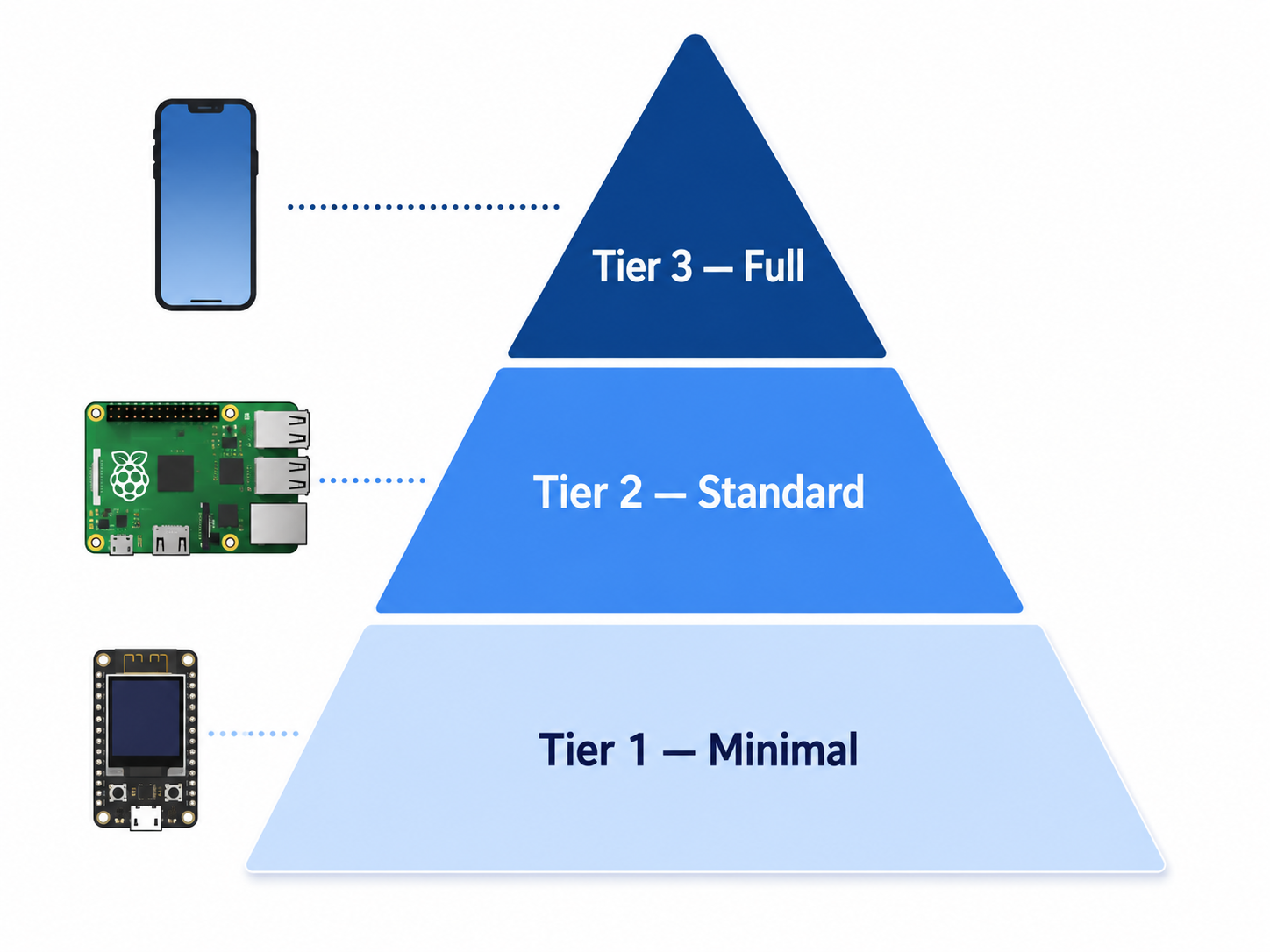
Three tiers of screen
Legion supports three levels of display capability, called tiers. An app declares the minimum tier it needs, and Legion runs it on any device whose tier meets or exceeds that requirement.
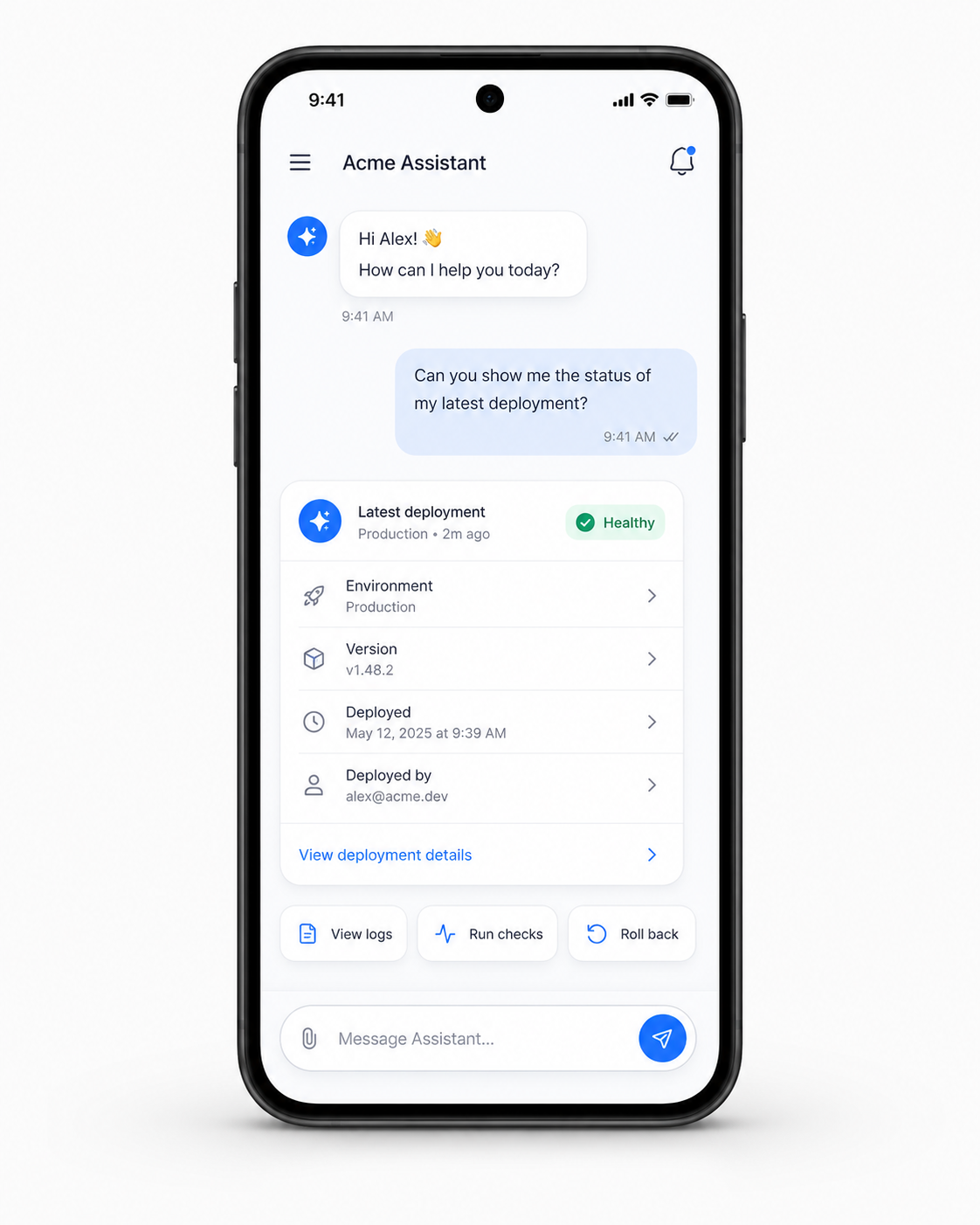
Tier 3 — The full experience
Devices: Smartphones, tablets, desktops, browsers
Rendering engine: A web view (like an invisible browser tab) built into the app. JavaScript is disabled in the web view — all logic runs in Legion's engine. The web view only renders HTML and CSS.
What it supports:
- Full HTML/CSS (including CSS Grid, flexbox, animations)
- Custom fonts
- Responsive layouts
- All interaction types (click, scroll, keyboard, touch)
This is what you'd expect from a modern app. Everything works.
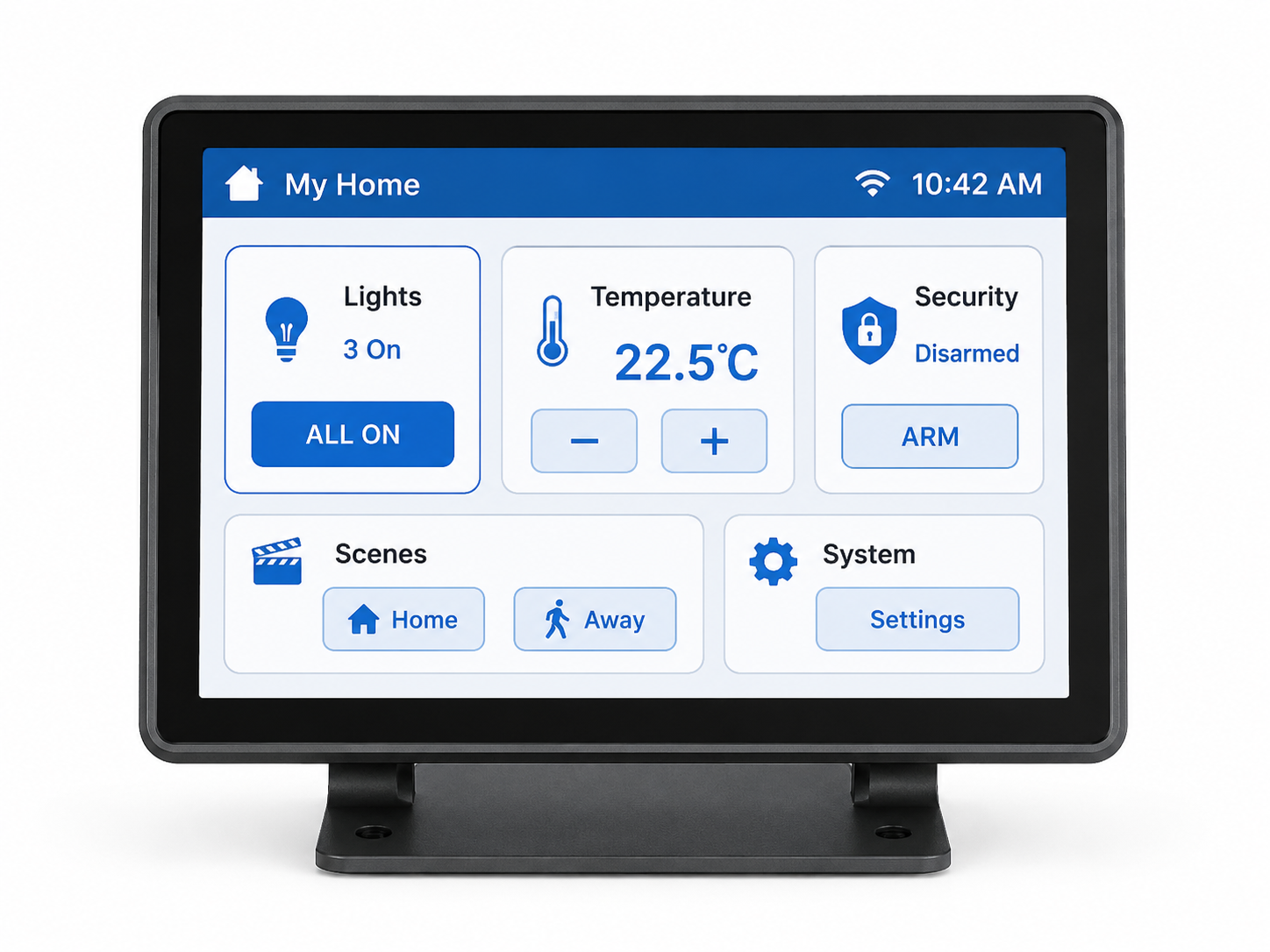
Tier 2 — The standard experience
Devices: Raspberry Pi, embedded Linux, TVs, low-power desktops
Rendering engine: litehtml, a lightweight C-based HTML renderer. It handles most modern HTML/CSS but without the heaviest features (no JavaScript, no animations).
What it supports:
- All Tier 1 features
- Tables, forms, more form controls
- Flexbox layouts
- Hover and focus effects (for mouse/keyboard input)
- CSS custom properties
This is enough for most useful apps. It's what you'd get from a browser in 2010, but optimized for low-power hardware.
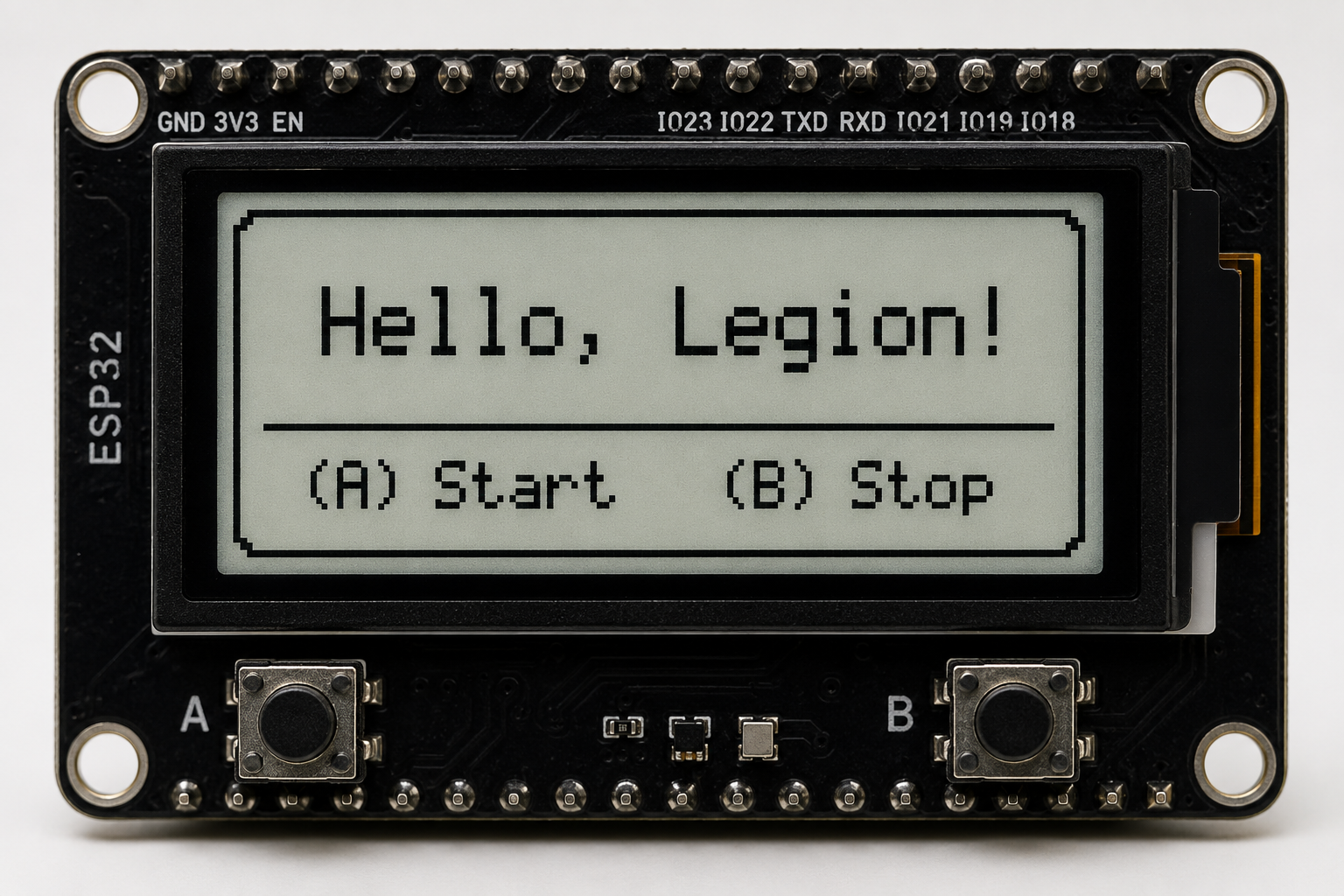
Tier 1 — The minimal experience
Devices: Microcontrollers (ESP32), e-ink displays, embedded screens
Rendering engine: A custom, hand-written renderer. No external libraries. Tiny footprint (works in a few KB of RAM).
What it supports:
- Basic text (headings, paragraphs, lists)
- Simple buttons and text input
- Images (only inline, no network loading)
- Basic layout (blocks and inline elements)
What it doesn't support:
- No JavaScript
- No flexbox or grid
- No scrolling containers
- No animations
This is the “Hello World” of displays. Enough for status screens, simple menus, and text-based apps. Not enough for complex interfaces.
How the app talks to the screen
The app produces HTML. Legion passes that HTML to the rendering engine appropriate for the device's tier. The renderer draws the UI. When the user interacts with the UI (taps a button, types text), the renderer sends events back to the app.
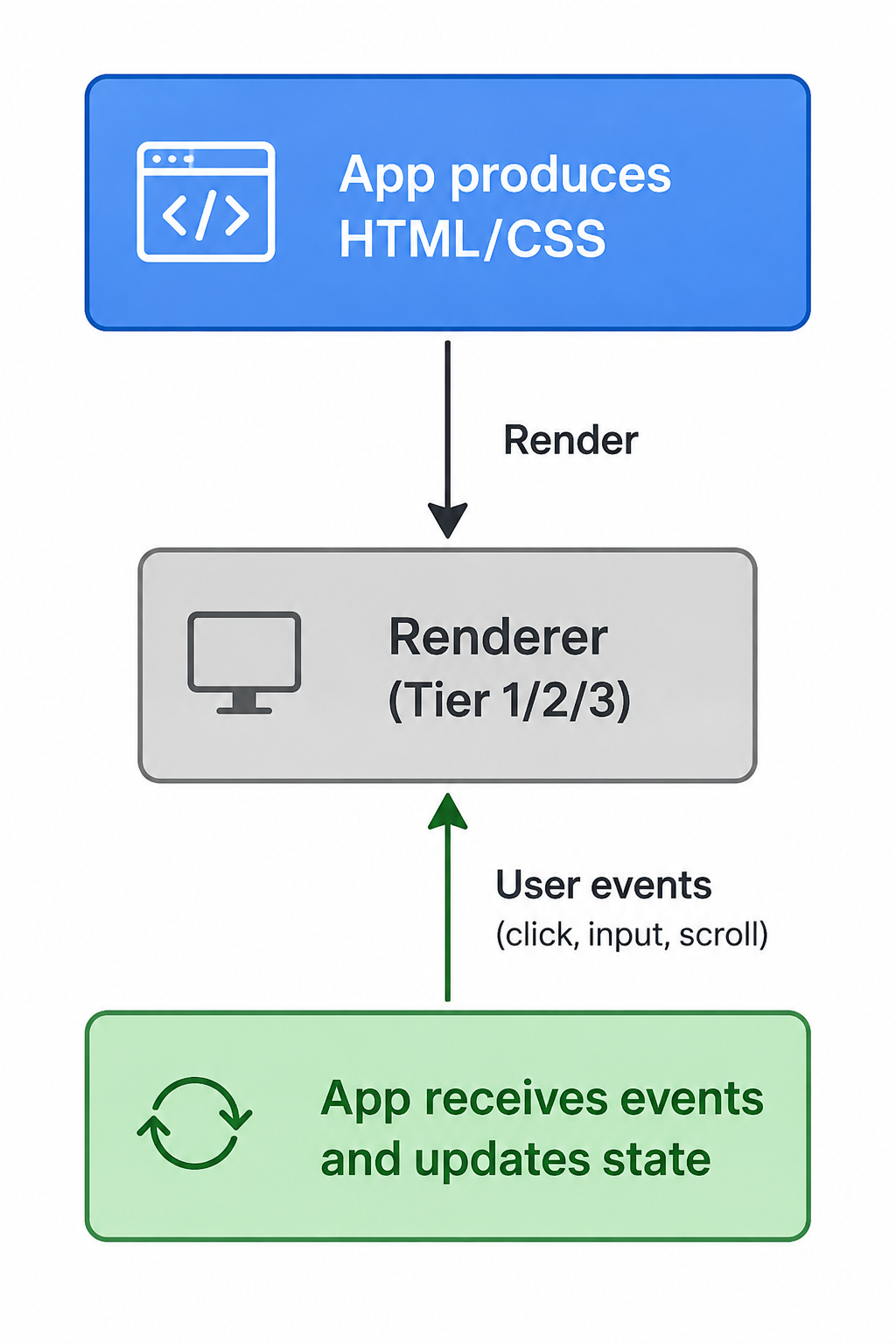
The event model is straightforward. Events have a type (click, input, scroll, etc.), an element ID (which element was interacted with), and a value (the text that was typed, etc.). The app listens for events and responds:
legion.ui.onEvent((event) => {
    if (event.elementId === 'send-btn') {
        // User tapped the send button
        sendMessage(event.value);
    }
});
Asset loading — no external URLs
Legion apps can include images, fonts, and other assets. But they can't load them from the internet. Every asset must be:
- Bundled with the app, or
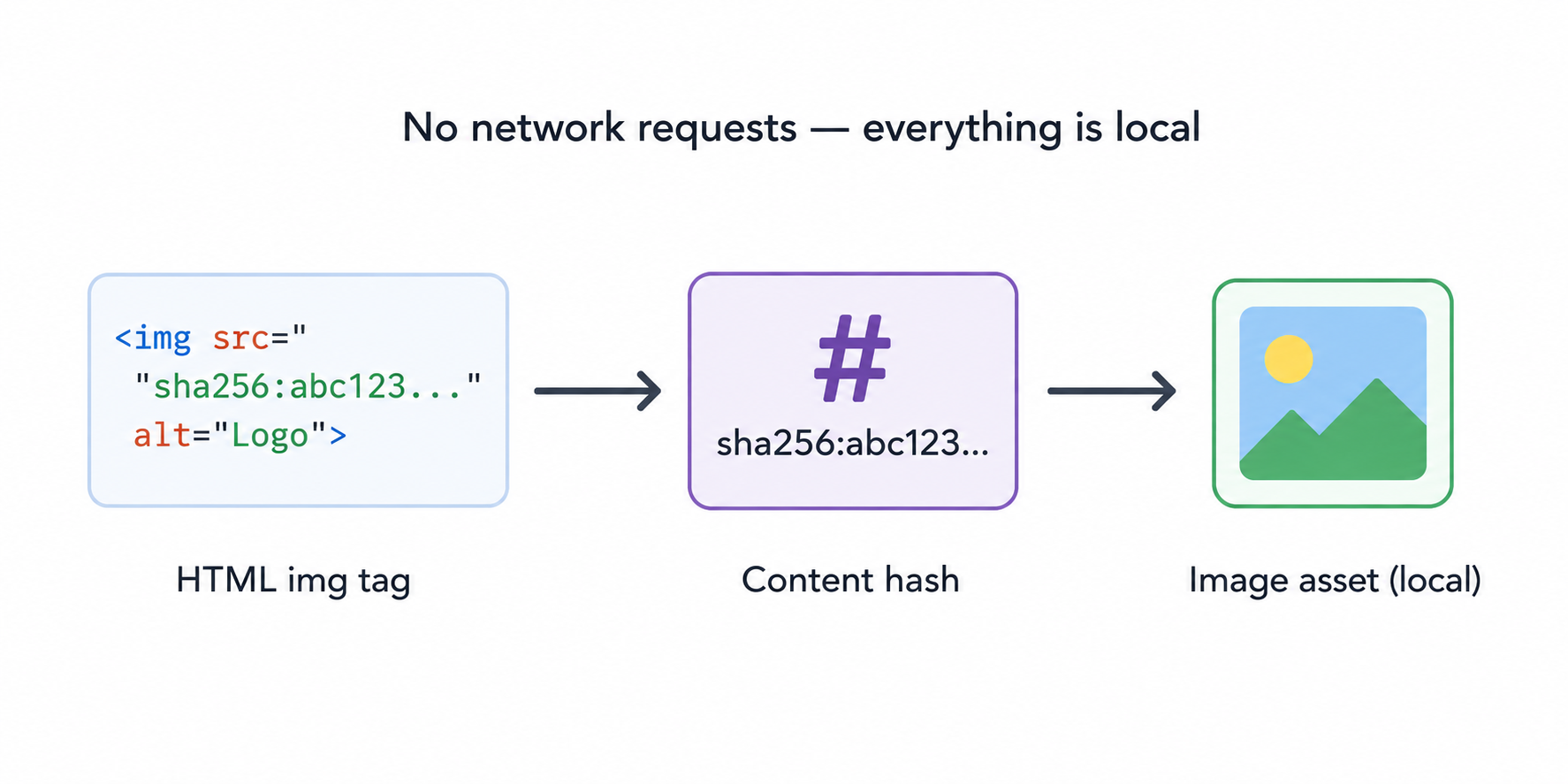
- Stored on a Legion node and referenced by its content hash
The syntax for referencing an asset looks like this:
<img src="legion-asset://sha256:a1b2c3d4..." alt="Logo">Legion resolves this reference by looking up the content hash in its local cache and substituting the actual image data. The renderer never makes a network request — everything is already local.
App handoff between devices
When you transfer an app from one device to another (phone to laptop, for example), Legion needs to preserve the app's state so the user experience is seamless.
There are two ways this can happen:
Lightweight handoff (preferred)
The app explicitly declares what state should be transferred:
legion.vm.onHandoffRequest(() => ({
    currentPage: state.page,
    scrollPosition: state.scrollY,
    selectedItem: state.selectedId
}));
This is efficient — only the essential state is transferred.
Full state transfer (fallback)
If the app doesn't implement lightweight handoff, Legion takes a snapshot of the entire virtual machine state (including all variables, timers, and internal state) and sends that to the destination device. This is more comprehensive but also more data.
In both cases, the app resumes at the exact same point. The user doesn't notice any interruption.
Rendering tiers in practice
When an app starts, Legion checks: “Does this device have a rendering tier high enough for this app?”
| App declares | Device has | Result |
|---|---|---|
| Tier 1 | Tier 1 | Runs ✅ |
| Tier 1 | Tier 2 | Runs ✅ (superset) |
| Tier 1 | Tier 3 | Runs ✅ (best experience) |
| Tier 2 | Tier 1 | Won't run ❌ |
| Tier 2 | Tier 2 | Runs ✅ |
| Tier 2 | Tier 3 | Runs ✅ |
| Tier 3 | Tier 1 | Won't run ❌ |
| Tier 3 | Tier 2 | Won't run ❌ |
| Tier 3 | Tier 3 | Runs ✅ |
A higher-tier device can always run a lower-tier app — it just has more features available. Think of it like running a mobile app on a tablet: it works, just with more screen space.
Summary
| Tier | Device type | Rendering engine | Complexity |
|---|---|---|---|
| 1 | Microcontroller | Custom renderer | Minimal |
| 2 | Raspberry Pi, embedded Linux | litehtml | Standard |
| 3 | Phone, tablet, desktop | Web view (WKWebView, Android WebView) | Full |
The same app runs on all tiers — it just looks and behaves differently depending on what the device can do. This is Legion's version of “responsive design,” but at the platform level, not the CSS level.
What comes next
You've now seen how Legion looks on screen. The final page, Under the hood, ties everything together with a complete architecture map and explains how all the pieces fit together in the codebase.